 seek
seek

Every home has the drawer: a tangle of cables, chargers, and small adapters, and nobody remembers which one belongs to what. Then a charger dies, or you need to connect a laptop to a TV, and you need the exact name of a plug you cannot describe. The fastest way to find out is to photograph the end of the cable. The shape of the plug is what gives it its name.
This guide shows how to identify a cable or adapter with Seek, how to recognise the most common plugs yourself, and what to check before you buy a replacement. Most cable guides stop at the name. The name is only the start: the real question is usually “which charger do I buy?” or “will this work with my device?”
A worked example: the short adapter with two different ends
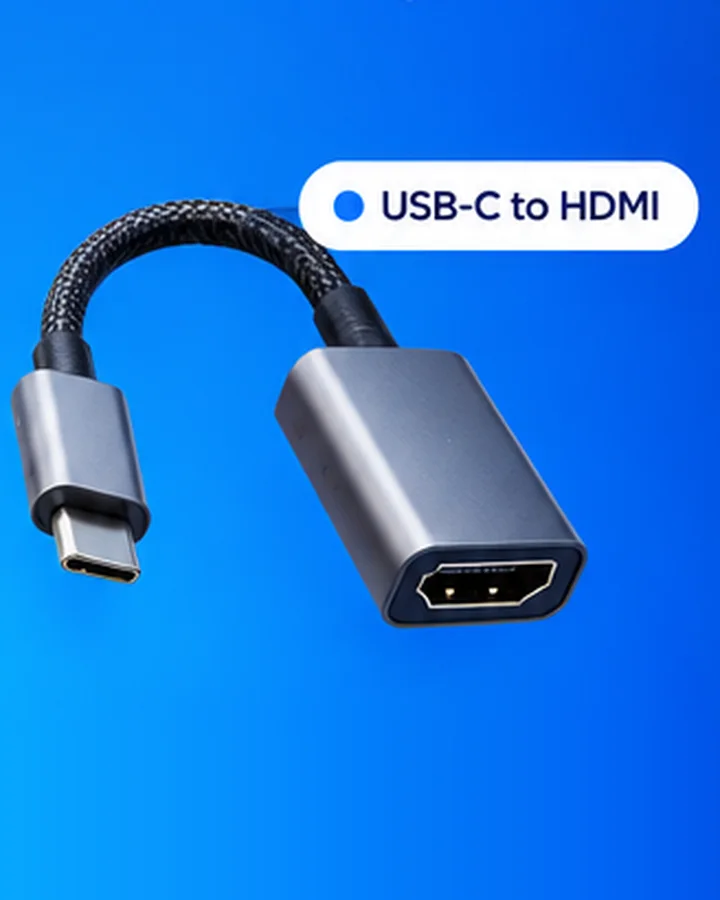
You find a short braided cable. One end is a small oval plug. The other end is a wide socket with angled corners. Seek names it a USB-C to HDMI adapter: it connects a laptop, tablet, or phone with a USB-C port to a TV or monitor.
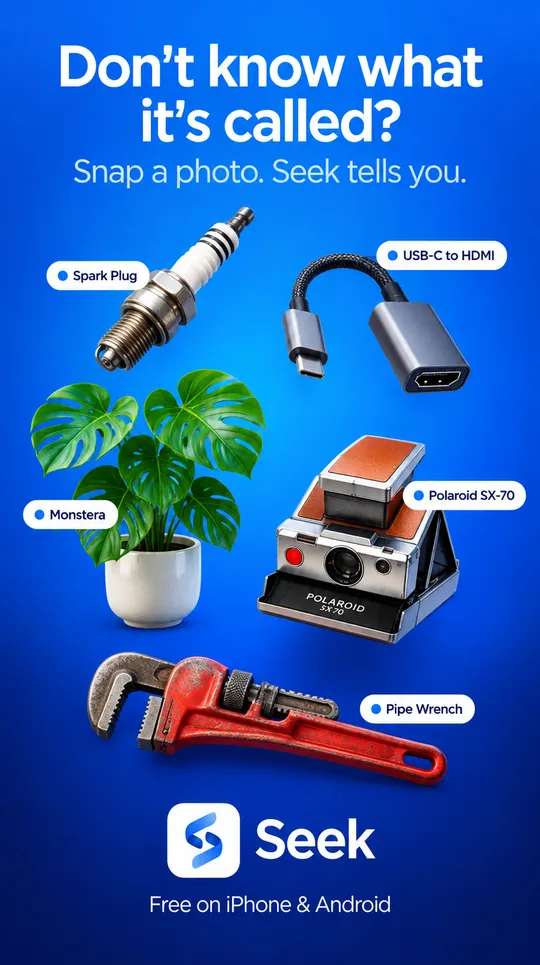
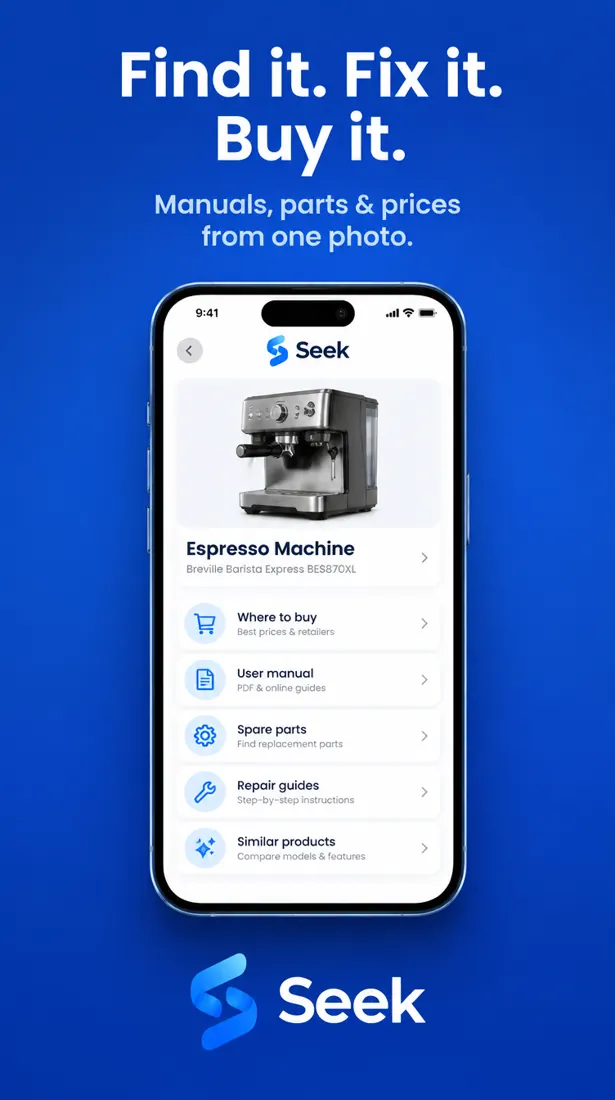
The next question is the important one: will it work with your laptop? Not every USB-C port can send a picture to a screen. Ask Seek “Does this adapter work with any USB-C port?” and it will explain what to look for, such as a small display icon next to the port or a note in the laptop manual. Then use Find It to see where to buy one and similar adapters. The images on this page are examples of the Seek flow.
Step by step: identify a cable with Seek
- Photograph the plug, not the cable. Hold the plug so the opening faces the camera, on a plain background. The middle of a cable all looks the same; the end is what tells cables apart.
- Take a second photo of the other end. Many cables have two different ends, and the name is built from both (for example “USB-C to USB-A”).
- Scan with Seek. You get a name, a category, and a confidence score. A low score means “take a closer photo”.
- Photograph any text. Chargers and power adapters have a small printed label with the output in volts (V) and amps (A) or watts (W). Some cables have tiny print on the plug.
- Ask a follow-up. With Ask Seek you can type or say “What device uses this plug?” or “Can I charge my phone with this?”
- Use Find It. Look for where to buy a replacement, the user manual for the device, or similar items.
Quick reference: common plugs and how to recognise them
- USB-C Small, flat oval plug that fits either way up. Used by most new phones, laptops, tablets, and headphones.
- Micro-USB Small and flat, wider at the top than the bottom, so it only fits one way. Older phones, speakers, and many small gadgets.
- USB-A The classic flat rectangle. Fits one way only. The end that goes into a charger or computer.
- USB-B Almost square, with two bevelled corners on top. Mostly printers and some music equipment.
- HDMI Wide, flat plug with the two lower corners angled in. TVs, monitors, game consoles. Smaller Mini and Micro HDMI versions are used on cameras and small computers.
- DisplayPort Looks like HDMI but only one corner is cut off. Often has a small latch you press to unplug it. Computer monitors.
- VGA Usually blue, D-shaped, with 15 pins in three rows and two thumbscrews. Older monitors and projectors.
- Ethernet Clear plastic plug with a clip and eight thin gold contacts. Internet routers and computers. A phone plug looks similar but is narrower.
- 3.5 mm audio jack Round metal pin. Two black bands means stereo sound only; three bands usually means a headset with a microphone.
- Optical audio Square-ish plastic plug, often with a small cap. The socket glows red when it is working. Sound bars and TVs.
- DC barrel plug Round plug with a hole in the middle. Routers, monitors, speakers, toys. Many sizes look almost the same.
- Mains power leads A three-hole plug for computers and monitors, a “figure 8” plug with two round lobes for TVs and consoles, and a “cloverleaf” plug with three round lobes for many laptop power bricks.
Before you buy a replacement charger
Getting the plug right is only half of it. A charger that fits can still be the wrong one. Check the label on the old charger or on the device:
- Voltage (V) must match. A different voltage can damage the device or simply not work.
- Amps (A) or watts (W) should be the same or higher. Lower usually means slow charging or no charging.
- Barrel plugs: size and polarity. Two round plugs can look identical but differ by a fraction of a millimetre, and the small polarity symbol on the label must match.
- USB-C cables are not all the same. They look identical, but some only charge, some are slow for data, and some do not carry video. A photo cannot show this; check the print on the plug or the box.
If the label is worn off, scan the device itself instead. With the brand and model, Find It can help you look for the user manual, which lists the correct power supply. For other loose parts, see find a spare part from a photo. For the small things in the same drawer that are not cables, see what is this thing in my junk drawer?
Honest limits
Seek is good at naming the type of plug and the kind of cable. It cannot measure a cable’s speed, its maximum power, or whether it is a genuine part, and a result can be wrong, especially for rare or very old connectors. For old cables from the back of a cupboard, an unknown power brick, or anything else you cannot name, start with how to identify any object by photo. If the cable belongs to a tool, see identify a tool by photo. If you found a remote with the cables and do not know what it controls, see identify a remote control by photo. If a charger or gadget died and you opened it to look at the parts inside, see identify an electronic component by photo. For a blown fuse in a plug or wall adapter, see identify a fuse or relay by photo.
Common questions
How can I tell what cable I have?
Look at the plug, not the cable. Photograph both ends with the Seek app on a plain background. Seek suggests the name, such as USB-C, Micro-USB, HDMI, or DC barrel plug, and you can ask follow-up questions about what it connects to.
Can I identify a charger from a picture?
Yes. Photograph the plug and the printed label on the charger. The plug gives the type, and the label gives the voltage and amps or watts, which you need to buy the right replacement.
Why does my USB-C cable not show a picture on my TV?
Not every USB-C port or cable carries video. Check for a display icon next to the port or look in the device manual. Some USB-C cables are made only for charging.
Will Seek tell me if a cable is fast or genuine?
No. A photo cannot show a cable’s speed, power rating, or whether it is genuine. Check the print on the plug, the packaging, or the maker’s information.