 seek
seek

You find a thing in a drawer, at a market, or in a box from a relative. It is clearly made for something. But you have no word for it, so you cannot look it up. “Small metal object with a spring” gives you a million wrong results.
An object identifier solves the first step. You take a photo, and it suggests what the item is. Once you have a name, everything else becomes easy: you can search, ask, buy, or repair. This guide explains how to do it well with Seek.

How an object identifier works
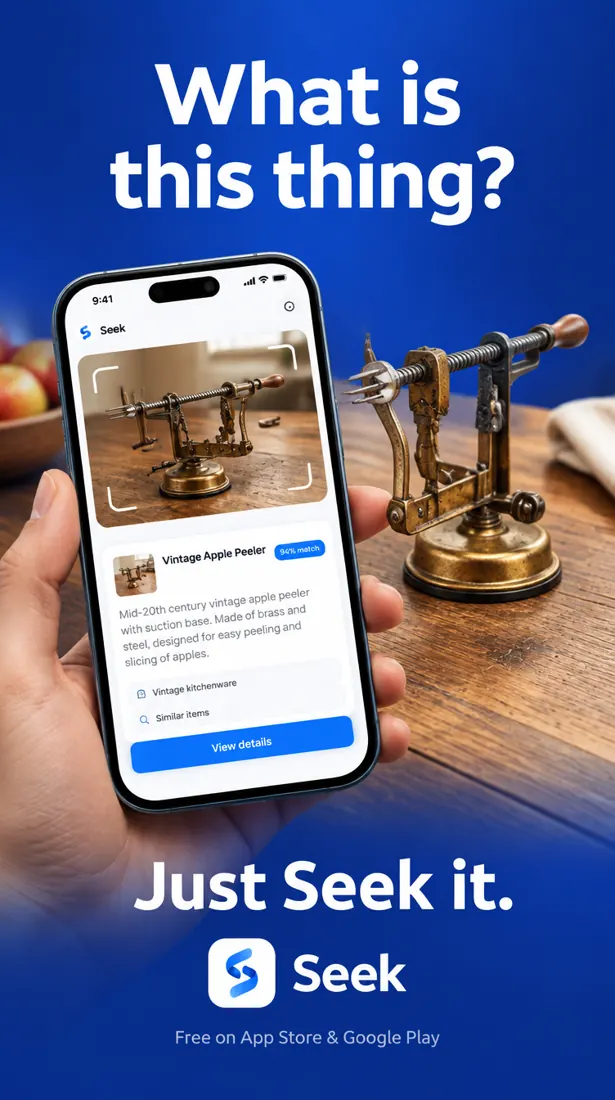
You point your phone camera at the item and take a photo. The photo is sent to Seek’s servers, where an AI vision model looks at the shape, the material, the parts, and any text or logos it can see. It then answers with three things:
- A name — a clear, common name for the object.
- A category — for example tool, kitchen, electronics, or toy.
- A confidence score — how sure the match is.
The confidence matters. A high score on a common item is usually right. A low score means “this is my best guess”, and you should take another photo or check the result. No identifier is right every time, and an exact brand or model is harder than the type of object.
Identify an item in six steps
- Put the object on its own. Take it out of the drawer or box. One item per photo.
- Use a plain background and good light. A table, a sheet of paper, or the floor near a window is enough.
- Fill the frame. Move closer until the object takes up most of the picture, and make sure it is sharp.
- Scan it with Seek. You get a name, a category, and a confidence score.
- Not right? Change the angle. Turn the object so the most unusual part is visible: the working end, the connector, the label, or the underside.
- Ask a follow-up. With Ask Seek you can type or speak a question about the thing you just scanned: “What is it used for?”, “Who makes this?”, “Is it safe to use?”
What kinds of items can you identify?
Seek is made for everyday objects, not only one category. People most often scan:
- Tools and hardware — pliers, wrenches, bits, and odd workshop pieces. See identify a tool by photo.
- Kitchen gadgets — the utensil nobody in the house can name. See identify a kitchen tool by picture.
- Toys — a figure or toy your child wants again. See find a toy by picture.
- Parts of things — a knob, filter, or bracket that fell off. See find a spare part from a photo.
- Junk-drawer mysteries — the small part you kept for years without knowing what it is. See what is this thing in my junk drawer?
- Screws and bolts — a loose fixing you need to match. See identify a screw or bolt by photo.
- Electronics and products — headphones, speakers, cameras, chargers, and household devices.
It will not identify every object, and it can miss an exact model. Treat the result as a strong starting point.
What people really scan
Most scans in Seek are ordinary products and household things, not rare treasures: laptops and phones, headphones, cameras, a cordless drill, a vacuum cleaner, a bookshelf, a vase, a book, a box of detergent. For products like these, a good scan often reaches the exact model, and the model is what you need to find a manual, a charger, or a spare part.
How is this different from a normal image search?
A general image search shows you pictures that look similar, and leaves you to work out the answer. That is fine for famous things. It is slow for a small part or an unusual tool, because similar-looking pictures are often of different things.
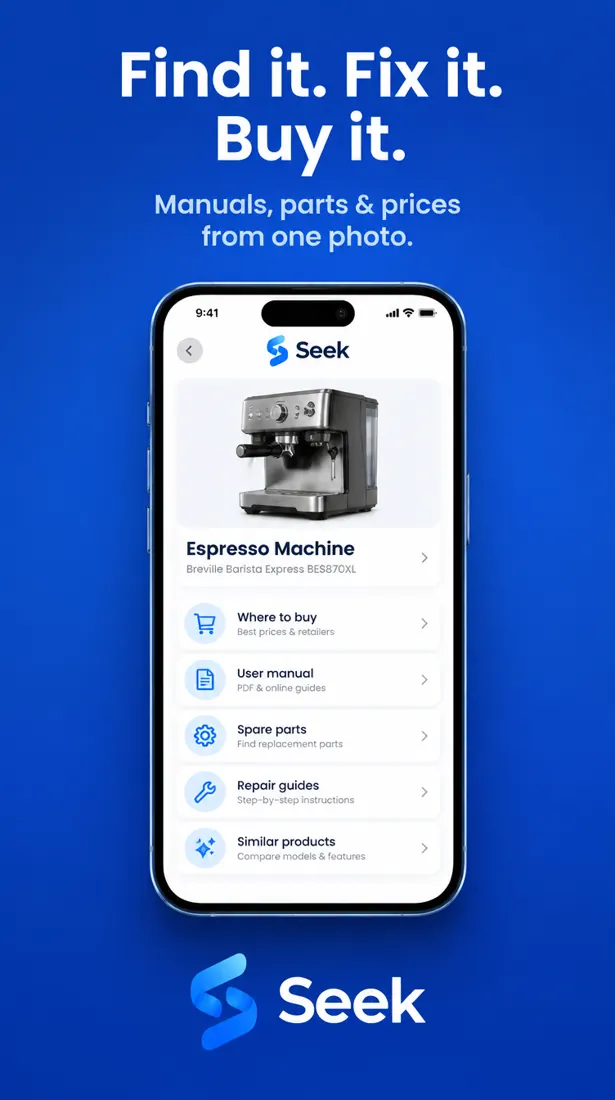
Seek gives one answer with a confidence score, keeps the object in context so you can ask questions about it, and goes one step further with Find It: the manual, spare parts, repair guides, and where to buy. The goal is not only “what is it?” but “what do I do with it?”
After the name: what you can do next
Knowing the name is rarely the real goal. Usually you want to do something with the object. After a scan, Find It in Seek helps you look for:
- Where to buy it, or one like it.
- The user manual, if it is a device or appliance.
- Spare parts and repair guides, if it is broken.
- Similar items, if you want to compare.
You can also save the result to a collection. Your scan history keeps what you found, so you do not have to identify the same thing twice.
When the photo is not enough
Some objects are hard for any identifier: a single small part with no markings, a hand-made item, or something very rare. In these cases:
- Photograph any text, numbers, or symbols, even tiny ones.
- Scan the larger thing it came from, not only the piece.
- Tell Ask Seek where you found it and what it was attached to. Context helps.
Common questions
How can I find out what an object is from a picture?
Take a clear photo of the object on a plain background with the Seek app. Seek suggests a name, a category, and a confidence score. You can then ask follow-up questions or look for where to buy it.
Is there a free app to identify objects?
Yes. Seek is free to download and use on iPhone and Android.
How accurate is an object identifier?
It depends on the photo and the object. Common items in good light are usually identified well. Rare items, small parts, and exact brands or models are harder, so Seek shows a confidence score and the result should be checked.
Can I identify an item from a photo I already took?
The best result comes from a new, sharp photo of the item on its own. If the first scan is not right, take another photo from a different angle.