 seek
seek

Every home collects remotes. One is for the TV, one came with the air conditioner, one belongs to a fan nobody owns any more, and one has no name on it at all. When a remote turns up in a drawer, or when the remote you use every day breaks, the same two questions come up: what does this remote control, and which one do I buy to replace it?
The buttons answer the first question better than the logo does. This guide shows how to read the button clues, how to check if a remote still works with your phone camera, and how to use Seek to go from a photo to the name, the manual, and a matching replacement.
Quick answer
Scan the front of the remote with Seek to get the kind of remote (for example “air conditioner remote” or “soundbar remote”). Then look at the special buttons: Input means a TV, Mode and Swing mean an air conditioner, Oscillate means a fan, Eject means a disc player. Open the battery cover and look for a model number. Use Find It to look for the manual, a replacement, or similar universal remotes.
A worked example: the white remote with a small screen
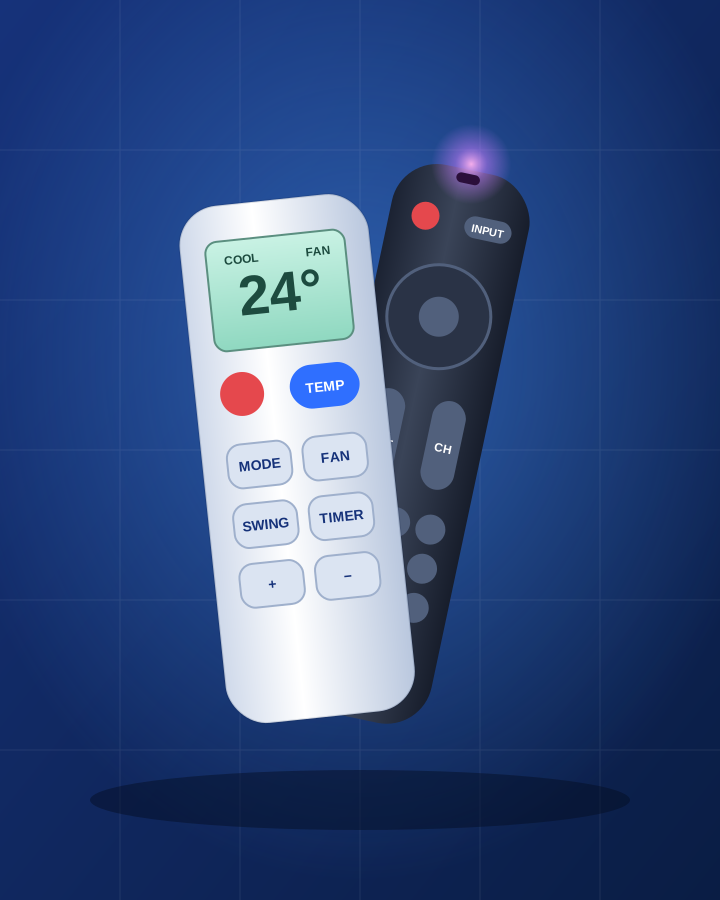
A white remote turns up in a drawer. It has a small grey-green screen showing “24°”, and buttons called Mode, Fan, Swing, Timer, and plus and minus. There is no TV-style number pad.
You scan it. Seek suggests an air conditioner remote in the electronics category. The buttons agree: a temperature on the screen and a Swing button (which moves the air flaps up and down) are only found on air conditioner and heat pump remotes. Now you know what to look for: the indoor unit on the wall, which has a label with its model on the side or under the front cover.
Next you ask Seek, “What does the Mode button do?” The answer: it switches between modes like cool, heat, dry and fan only. Then Find It helps you look for the user manual, a replacement remote for that model, and similar items such as universal air conditioner remotes. The image at the top of this page is an illustration, not an app screen.
Step by step: from a mystery remote to the right one
- Scan the front. Lay the remote flat in good light with all the buttons in the frame. Seek suggests a name, a category and a confidence score.
- Read the special buttons. Ignore power and volume; every remote has those. Look for the buttons only one kind of device needs (see the list below).
- Open the battery cover. The model number of the remote is often printed inside, on the back, or on a sticker. Scan or write down any code you see.
- Test it with your phone camera. Point the remote at the camera, look at the screen and press a button. Most infrared remotes show a small flashing light on the screen that your eyes cannot see. If the main camera shows nothing, try the front camera.
- Find the device. Walk around and press power near anything it might belong to. Check the device’s own label for its model.
- Use Find It. Look for the manual, a replacement remote, or similar items. Search with the device model as well as the remote model, because replacements are listed for devices.
Quick reference: button clues and what they mean
- TV remote Input or Source button, channel up and down, a number pad, often a Guide or Menu button.
- Air conditioner remote Small screen with a temperature, Mode, Fan speed, Swing, Timer. No number pad.
- Fan remote Oscillate (or a turning-arrow icon), speed, timer, sometimes a wind mode such as natural or sleep.
- Ceiling fan with light Fan speeds plus a light or bulb button and a dimmer. Often a small, thin remote.
- Soundbar remote Sound modes, bass or treble, inputs like optical, HDMI or Bluetooth, but no channel buttons.
- DVD or Blu-ray player Eject or open/close, play, pause, skip, subtitle and audio buttons.
- Cable or satellite box Guide, record, a channel list, and colour buttons for the menu.
- Streaming device Very few buttons: home, back, a ring or pad to move, play and pause, often a microphone button.
- Projector remote Keystone, focus or zoom, and source buttons.
- LED strip or smart bulb Rows of coloured buttons, brightness up and down, effect modes like fade or flash.
- Electric fireplace or heater Flame or heat buttons, a thermostat, and a timer.
- Garage door or gate remote Small keyfob with one to four buttons and often a key ring. It uses radio, not infrared.
The phone camera test, and when it fails
Most TV, fan and air conditioner remotes send infrared light, which a phone camera can often see as a flashing light. If you see the flash, the remote and its batteries work, and the problem is pairing, codes, or the device. If you see nothing, try new batteries first, then the other camera. Some remotes use radio or Bluetooth instead of infrared (many streaming remotes, garage door fobs, and some newer TV remotes). These never show a light, so the test does not apply; check the manual for how to pair them.
Replace it: the right remote or a universal one
The safest replacement is the remote made for your device model. Search with the model from the device label, and compare the photo of the replacement with yours: the same special buttons usually mean the same remote. A universal remote is a good option for TVs and many air conditioners, but check that it lists your brand and device type. For streaming devices and some smart TVs, the maker’s phone app can act as a remote while you wait for a new one.
Honest limits
Seek names the kind of remote and helps you look for the manual and replacements. It cannot always read the exact model from a photo, and many remotes look alike while sending different codes, so check the model numbers before you buy. A result can be wrong, and the photo is sent to Seek’s servers to be identified. Keyfobs and small remotes often use coin cell batteries (see identify a battery type by photo): keep these away from children, and dispose of them safely.
If you know the device but need its manual, see find a user manual from a photo. For chargers and leads that came with it, see identify a cable or adapter by photo, and for the battery cover or other missing pieces, find a spare part from a photo. Found the remote in a drawer of other mysteries? Try what is this thing in my junk drawer?
Common questions
How do I find out what a remote control is for?
Look at the special buttons. Input means a TV, Mode and Swing mean an air conditioner, Oscillate means a fan, Eject means a disc player. Scan it with Seek to get the type, then check inside the battery cover for a model number.
How can I test if a remote works?
Point it at your phone camera and press a button. Most infrared remotes show a flashing light on the screen. Radio and Bluetooth remotes do not, so this test does not work for them.
Where is the model number on a remote?
Usually inside the battery compartment, on the back, or on a small sticker. If it is not there, use the model of the device the remote controls.
Can a universal remote replace any remote?
Not every one. Universal remotes cover many TVs and some other devices, but check that your brand and device type are listed. Radio and Bluetooth remotes often need the maker's own remote.