 seek
seek

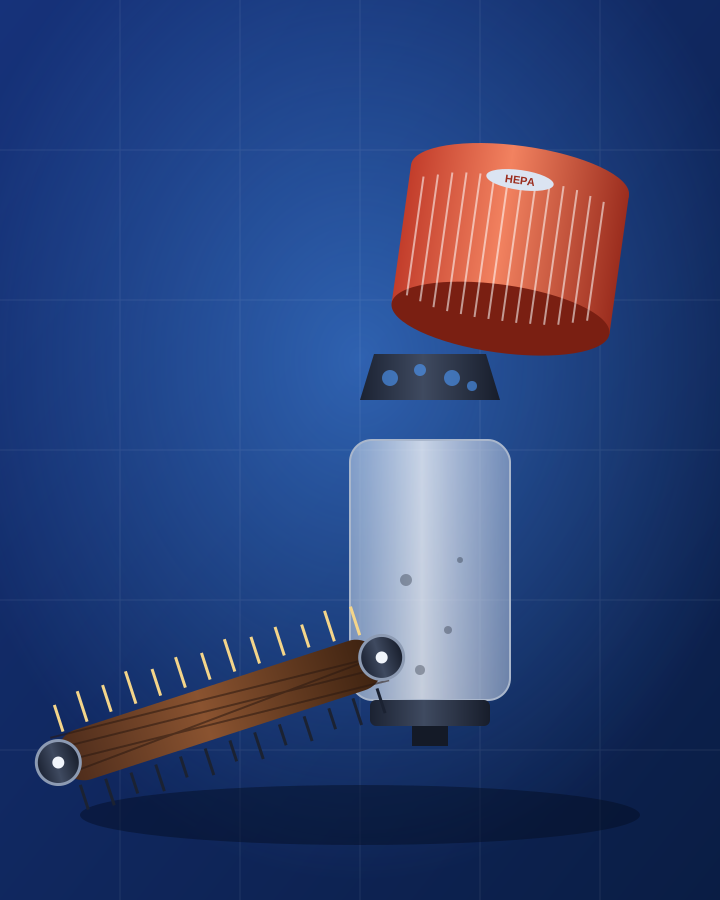
A stick vacuum that stopped picking up. An upright that smells burnt. A canister whose hose keeps popping off. You take it apart on the kitchen floor, lay the pieces on a towel, and realise you do not know what half of them are called. The brush spins, the thing with the pleats is grey, and a small plastic cap is missing.
This guide shows how to use Seek to put a name on each part from a photo, how to find the right replacement for your vacuum (which model matters more than you think), and when a cheap fix is better than a new vacuum.
Quick answer
Unplug the vacuum or take out the battery. Lay the parts on a plain surface in good light. Scan the one you want to name with Seek. It gives a name and a category, for example "brush bar", Vacuum. The same part has different sizes and clips for every brand and model, so once you know the name, use Find It to look for the matching spare part for your exact vacuum and the repair guide for your model. Ask Seek can explain what the part does and why it may have failed.
A worked example: a stick vacuum that stopped picking up
A cordless stick vacuum goes dead on carpet. The suction sounds fine, so the problem is at the floor head. You unclip the head, and the long roller inside does not turn freely. A plastic end cap at one side has a crack.
You scan the long roller first. Seek suggests a brush bar (also called a beater bar or agitator) in the Vacuum category. Then you scan the broken cap. Seek calls it a brush bar end cap. Ask Seek: "What does the end cap do and why would the bar stop turning?" The answer: the cap holds the bar on its bearing; a cracked cap lets the bar drag or jam, so the motor cuts out to protect itself.
Now you scan the vacuum body. The result is the model name of the stick vacuum. In Find It you search for the end cap for that model, not a generic one, because the clips and the shaft size are not the same across brands. The image at the top of this page is an illustration, not an app screen.
Step by step: from a broken vacuum to the right spare
- Unplug it or take out the battery. A spinning brush bar can grab fingers and hair. Wait a moment before you open anything.
- Lay the parts out. One clear photo of all the pieces together helps you remember how it goes back. Then separate the one you want to name.
- Scan the part. Fill the frame in good light. Seek gives a name, a category and a confidence score. A result can be wrong, so read the next steps too.
- Scan the vacuum. Point Seek at the body. The model matters: filters, bars and hoses are not the same even for two vacuums from the same brand.
- Find the model number. See the next section. Write it down with the serial number if there is one.
- Ask what the part does. Ask Seek, by text or voice: "What does a HEPA filter do and when should I replace it?" or "Why does my brush bar not turn?"
- Use Find It. Search for the spare part, the user manual and repair videos for your exact model. Compare photos and part numbers on the shop page with your part before you order.
Where to find the model number on a vacuum
The model is usually on a small silver or white sticker, printed small. It is in a different place on each type:
- Upright vacuum — on the back of the body near the bottom, or under the handle where it folds down.
- Canister vacuum — on the underside, or behind the dust bag door.
- Cordless stick vacuum — under the handle, or inside the dust bin area; sometimes under the battery when you slide it off.
- Robot vacuum — on the underside between the wheels, or under the dust bin lid.
- Handheld vacuum — in the battery compartment or under the dust cup.
- Wet and dry vacuum — on the top of the motor housing or inside the tank.
Numbers on the box or the plug are usually power ratings, not model numbers. The model is often a letter and a short code (for example "V8", "DC50", "FC9170", "SV16") and sometimes a longer serial under it. Photograph the sticker close up with your phone and zoom in to read it.
Quick reference: common vacuum parts and how to recognise them
- Brush bar Long roller inside the floor head with soft and stiff bristles. Also called beater bar or agitator.
- Brush bar end cap Small plastic cap at one end of the bar that holds it on its bearing. Often cracks before anything else.
- Drive belt Thin rubber loop between the motor and the brush bar on an upright. A stretched or broken belt stops the bar from turning.
- HEPA filter Round or rectangular block of pleated paper, often red, blue or grey, usually in a plastic frame. Catches fine dust.
- Pre-motor foam filter Soft foam disc or sheet, sits before the motor. Washable; replace if torn.
- Post-motor filter A second filter at the exhaust side, keeps motor dust out of the room.
- Dust canister Clear plastic bin on bagless vacuums. Cracks and cloudy marks mean it needs cleaning or replacing.
- Dust bag Paper or cloth bag inside bagged vacuums. Has a cardboard collar with a hole shape unique to that model.
- Hose Flexible ribbed tube between the body and the floor head or wand. Splits at the ends from being pulled.
- Hose cuff Hard plastic ring at each end of the hose that clips into the body. Often sold with the hose.
- Wand Straight metal or plastic tube between the hose and the floor head. Sometimes telescopic.
- Crevice tool Long narrow nozzle for corners and car seats, clips onto the wand.
Keep it, replace it or buy a new vacuum
Many "dead" vacuums are a clogged filter, a stretched belt, a cracked end cap or hair wound around the bar. These are five-minute fixes with a part that costs very little. A charger that will not charge, a damaged battery or a burnt-smelling motor is a bigger repair; weigh it against the price of a new vacuum of the same kind. Robot vacuum batteries and small cordless batteries can swell or get hot; stop using the vacuum and recycle a damaged battery at a battery drop-off, do not throw it in household rubbish.
Honest limits
Seek names the kind of part and the model of the vacuum from the photo. Spare parts are brand- and model-specific, and the shape alone does not tell you the exact fit; always match the part number on the shop listing with the one on your old part or the sticker on the vacuum. Seek does not give prices or confirm compatibility, and a result can be wrong. The photo is sent to Seek's servers to be identified. For the plug and cord, see identify a cable or adapter by photo. For a battery you cannot name, see identify a battery type by photo. For a general spare, see find a spare part from a photo, and for the instructions, find a user manual from a photo.
Common questions
How do I identify a vacuum part from a photo?
Unplug the vacuum, put the part in good light and scan it with Seek. You get a name and a category, like "brush bar", Vacuum. Then scan the vacuum body to find the model, because the same kind of part has different sizes and clips for every brand.
Where is the model number on a vacuum?
It is on a small sticker, in a different place on each type: on the back near the bottom on uprights, under the dust bin on canisters, under the handle or battery on cordless sticks, and under the base on robots. Photograph it close up and zoom in to read the small print.
Why does my brush bar stop turning?
Usually hair or thread wound around the bar, a stretched or broken drive belt, or a cracked end cap. Many vacuums also cut power to the motor when the bar jams, so the fix is cheap. Scan the bar with Seek, ask Ask Seek what to check first, and use Find It to look for a belt or end cap for your exact model.
Can Seek find the exact spare part?
Seek names the kind of part and the vacuum model. Spare parts are model-specific, so Find It helps you look for the matching part number for your model. Always check the part number on the shop listing with the one on your old part before you order.