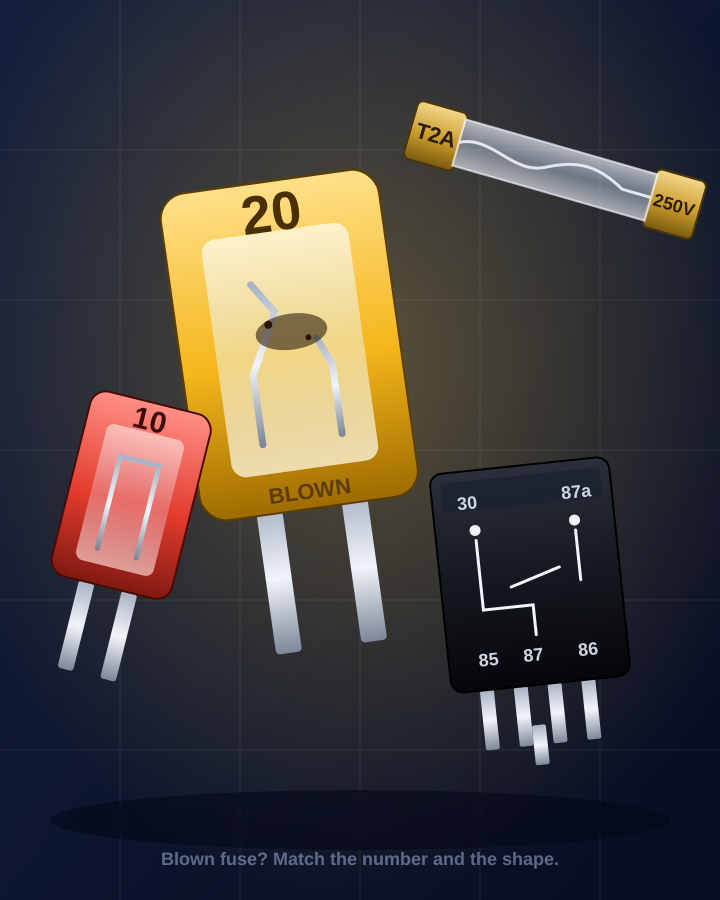
 seek
seek

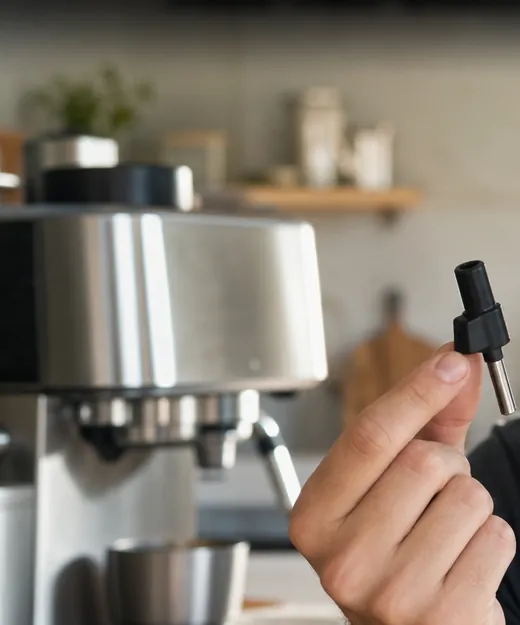
Something small breaks, and the whole machine stops being useful. A knob snaps off the cooker. The vacuum filter tears. The steam-wand tip of the coffee machine goes missing. The fix is usually cheap, but only if you can find the right part. And to search for a part, you need to know what it is called.
That is the real problem. Parts have names that nobody uses in daily life: gasket, impeller, ferrule, carafe lid, belt tensioner. This guide shows how to start from a photo with Seek, get the name, and then look for the spare part.
A real example: the tip of a coffee machine steam wand
A small black cone with a hole in it is lying next to the espresso machine. It fell off the metal pipe that froths the milk. Without it the machine still makes coffee, but no foam. What do you type into a search box?
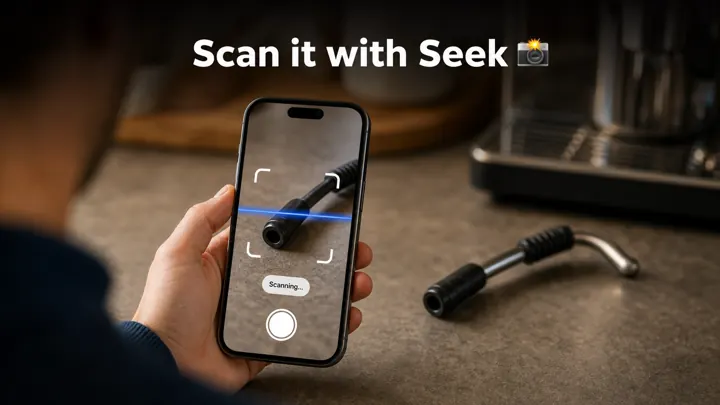
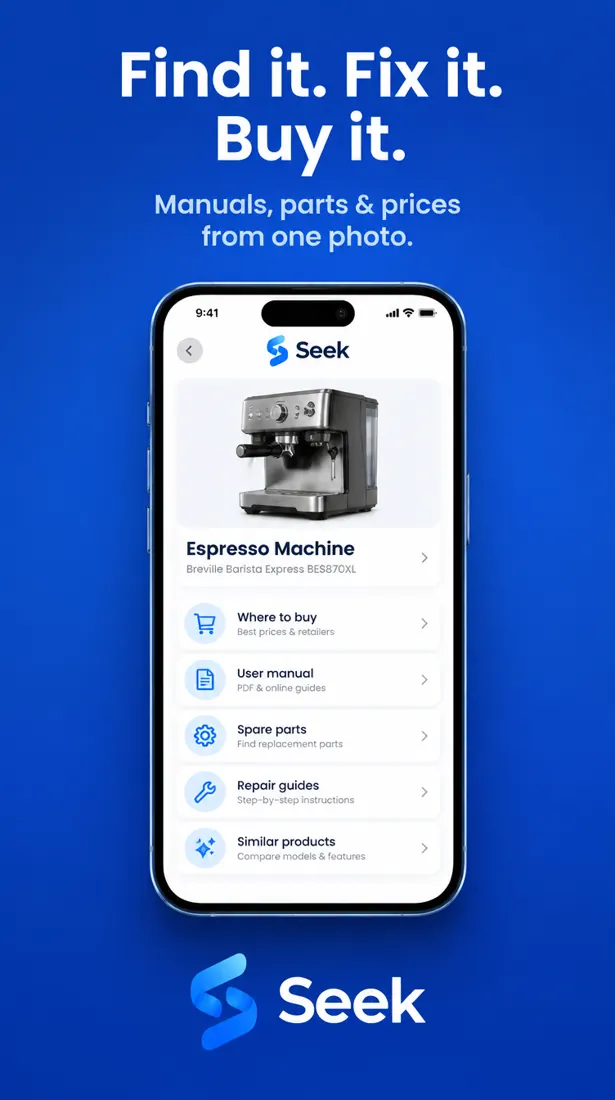
The part is a steam wand tip. That one name changes everything: now you can search for “steam wand tip” together with the model of your machine. Scan the machine as well, so you have the brand and model, and use Find It to look for the part and the manual. The images are examples of the Seek flow.
Step by step: from broken part to replacement
- Photograph the part on its own. Put it on a plain surface in good light. If it is in pieces, lay the pieces together in their original shape.
- Scan it with Seek. Seek suggests a name, a category, and a confidence score. For a part, the name is often the type of part, such as “vacuum filter” or “control knob”.
- Scan the machine too. A part only makes sense with the product it belongs to. Scan the appliance, and photograph its rating label. The label usually has the brand and the model number, and it is often on the back, the base, or inside the door.
- Use Find It. After a scan, Find It helps you look for spare parts, the user manual, repair guides, where to buy, and similar items.
- Ask a follow-up. With Ask Seek you can type or speak questions such as “What is this part called?”, “Is this part replaceable?”, or “What should I check before I order it?”
- Check before you buy. Compare the part number, the size, and the shape with the listing. A result can be wrong, and many parts look the same but do not fit.
Why the model number matters
Two machines that look the same can use different parts. Makers change small details between versions. The model number is what sellers use to say which part fits which machine.
So the most useful photo is often not the part. It is the label. Look for a sticker or metal plate with a model or type number. On small parts, look for a number molded into the plastic or printed on the rubber. Photograph it close enough to read.
Parts that people search for most
- Coffee machines — seals, water tanks, drip trays, filter holders, and steam-wand tips.
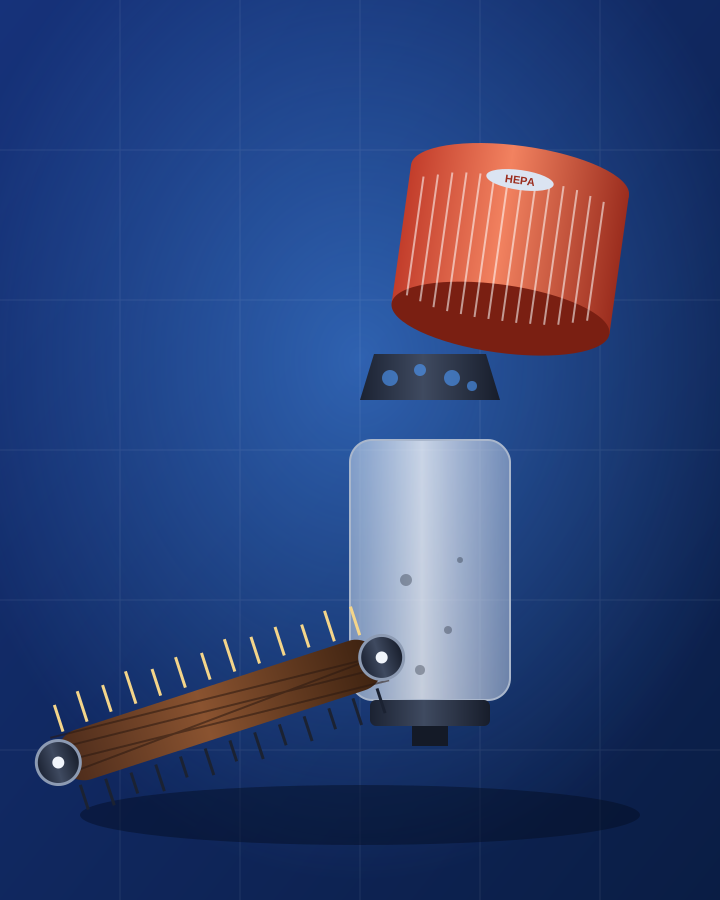
- Vacuum cleaners — filters, belts, brush rolls, hoses, and wheels. See identify a vacuum part by photo.
- Cookers and ovens — control knobs, door seals, shelves, and lamp covers. For the bulb behind the cover, see identify a light bulb.
- Fridges and dishwashers — door shelves, drawers, baskets, wheels, and spray arms.
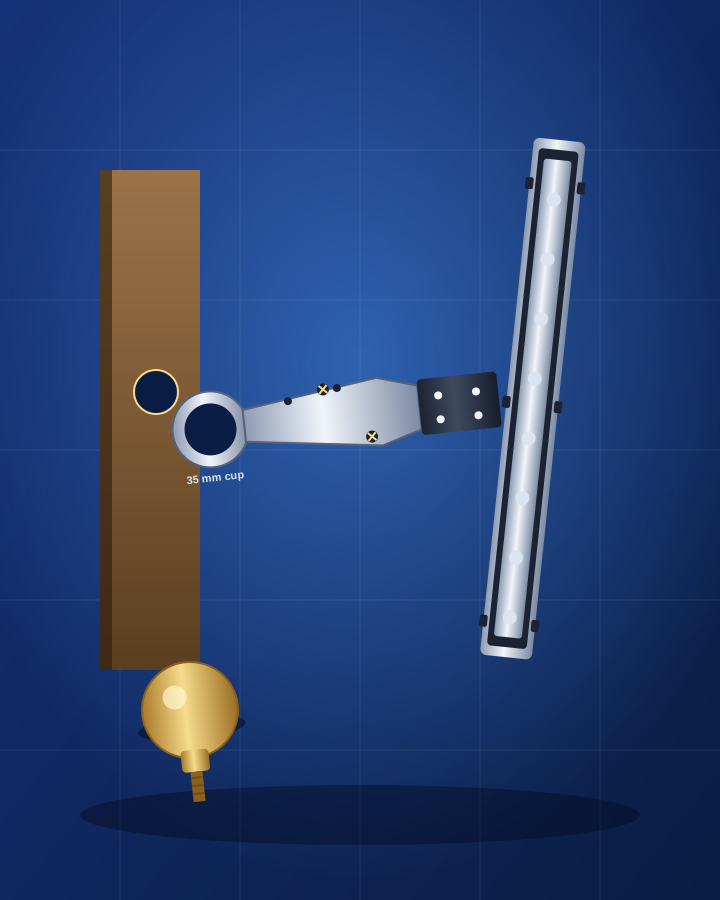
- Furniture — hinges, shelf pins, cam locks, and drawer runners from flat-pack furniture. See identify door or cabinet hardware by photo.
- Remotes, chargers, and cables — a missing remote or power adapter is one of the most common “parts” of all.
- Tools — blades, batteries, chucks, and guards. See identify a tool by photo.
- Screws and bolts — the one fixing that fell out of a chair, hinge, or bed frame. See identify a screw or bolt by photo.
When the part is missing completely
Sometimes there is nothing to photograph, because the part is gone. You can still start from a picture:
- Scan the machine and its label, then ask Seek what the missing part is called. Describe where it sat and what it did.
- Photograph the empty place where the part belongs. The shape of the hole or the mount is a clue.
- Use Find It to look for the user manual. Many manuals include a drawing of all parts with their names.
Repair or replace?
A spare part is worth it when the rest of the machine is in good condition and the part is easy to change. Repair guides help you judge that before you order. If the repair involves mains electricity, gas, or water under pressure and you are not trained for it, leave it to a professional. Always unplug an appliance before you open it.
For a mystery item that is not a part, see how to identify any object by photo. For a part from a car, see identify a car part by photo, for a tap or pipe part, identify a plumbing part by photo, and for a flapper or fill valve inside a toilet tank, identify a toilet part by photo.
Common questions
How do I find a part if I do not know what it is called?
Take a photo of the part with the Seek app to get a likely name. Then scan the machine it came from and its model label, and use Find It to look for the spare part.
Can I find a replacement part from a picture?
Yes. A photo gives you the name of the part, and Find It in Seek helps you look for spare parts, the manual, repair guides, and where to buy.
Where is the model number on an appliance?
Usually on a sticker or metal plate on the back, the base, or inside the door. Small parts sometimes have a number molded into the plastic.
Will the part Seek finds always fit my machine?
No. A result can be wrong, and similar parts can differ between versions. Check the part number, size, and model compatibility in the listing before you buy.